 TamimahVnc
Encrypted by default
TLS 1.2+ with a certificate the viewer pins on first connect. The password is checked inside the encrypted tunnel, and repeated wrong guesses are blocked.
TamimahVnc puts your Mac's screen, or another Windows PC's, in a window on your PC. Type, click, copy and paste, move files, and drop screenshots straight into Cursor. Everything travels over an encrypted connection.
Built for daily work: coding, writing, and support, not just a quick look at the screen.
TLS 1.2+ with a certificate the viewer pins on first connect. The password is checked inside the encrypted tunnel, and repeated wrong guesses are blocked.
Only the parts of the screen that changed are sent, as JPEG or lossless. Pick a quality preset, frame rate, and resolution to suit the link.
Ctrl works as Command, so Ctrl+C, Ctrl+V, and Ctrl+Tab do what you expect. A Send keys menu covers Spotlight, Force Quit, Mission Control, and more.
Copy text on Windows and paste it on the Mac, or the other way round. No extra menus and no paste dialogs.
Copy a file or folder in Explorer and paste it in Finder, or copy in Finder and paste in Explorer. A progress bar shows each transfer.
Snip with Win+Shift+S and paste it on the Mac, or click Copy screenshot to grab the Mac screen onto both clipboards.
Connect on your home network, or from anywhere with Tailscale. No router changes and no open ports needed.
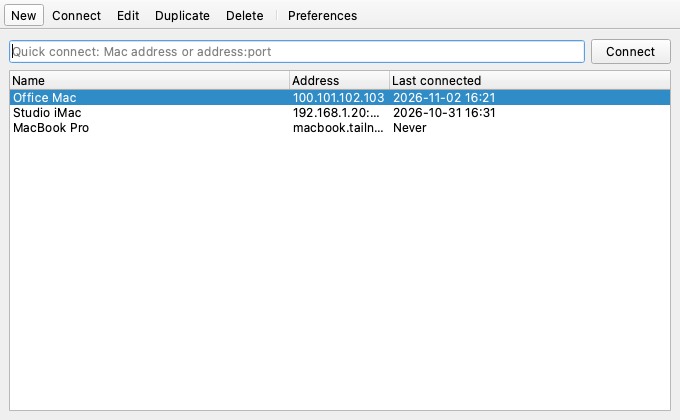
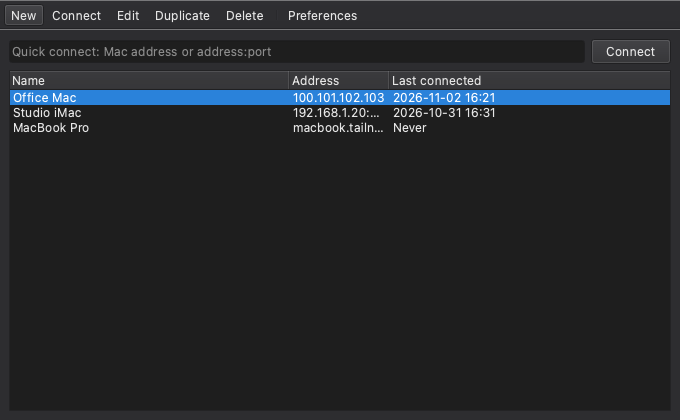
Save your Macs and PCs with names and passwords. Each connection opens in its own window, with scaling, full screen, and reconnect on drop.
On the Mac, TamimahVnc lives in the menu bar. It can open at login, start sharing automatically, and keep the Mac awake.
The Windows viewer on the left of your desk, the Mac settings in its menu bar.
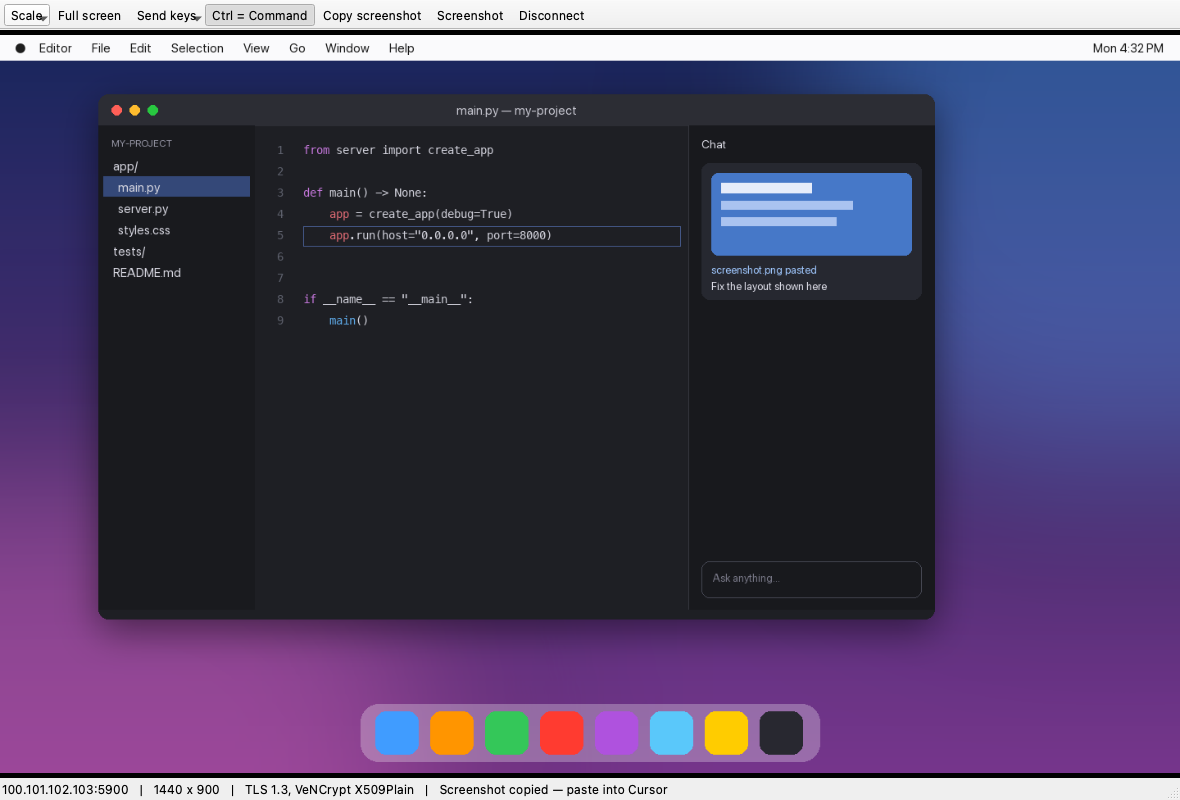
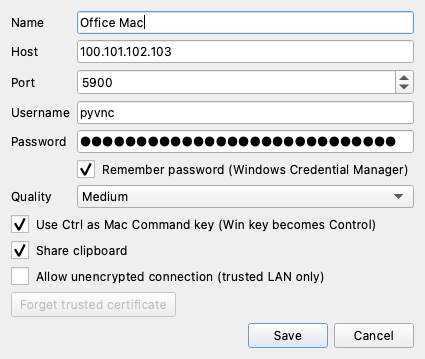
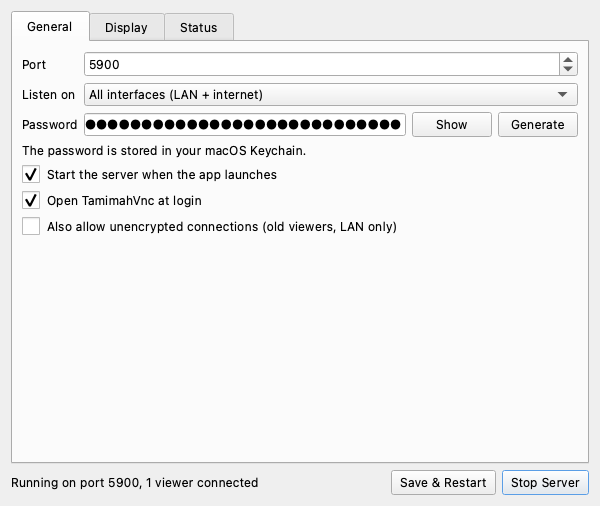
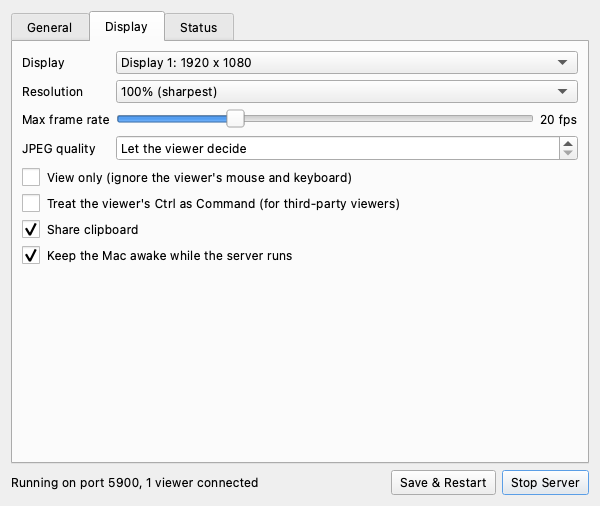
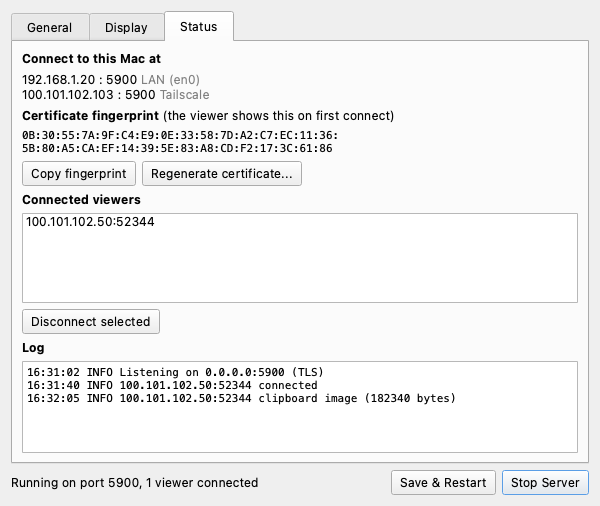
Press Win+Shift+S, draw around anything on your PC, then click into Cursor in the viewer and press Ctrl+V. The picture is already on the Mac clipboard.
About five minutes, most of it clicking Allow in macOS.
Unzip the download, drag TamimahVnc to Applications, set a password, and allow Screen Recording and Accessibility.
Unzip and run TamimahVnc-Setup.exe. No admin rights needed. It adds a Start menu entry and an uninstaller.
Enter the address from the Mac's Status tab, confirm the certificate fingerprint once, and you're in.
Step-by-step instructions with pictures are in the user manual.
Install the server on the computer you want to control, and the viewer on the one you sit at.
Menu bar app that lets a Windows PC see and control this Mac.
The app you use on your PC to open a window onto your Mac.
Tray app that lets the viewer control a Windows PC instead of a Mac.
No cloud service sits in the middle. The viewer talks straight to your Mac.
Every connection uses TLS 1.2 or newer. Unencrypted connections are off unless you turn them on for an old viewer.
The first time you connect, the viewer shows the Mac's fingerprint. If it ever changes, you get a warning before anything is sent.
Five wrong passwords from one address within 15 minutes, and that address is blocked.
Passwords live in the macOS Keychain and Windows Credential Manager, never in a settings file.
Install TamimahVnc for Mac on the Mac you want to control. Install the TamimahVnc Viewer on the Windows PC you sit at. The Windows server is only for controlling another Windows PC.
Yes. Install TamimahVnc Server on the PC you want to control and connect to it with the TamimahVnc Viewer, just like a Mac. Turn off Ctrl = Command for that connection. Text and file copy work both ways; pasting images into the remote PC isn't supported yet.
Yes. The simplest way is Tailscale on both computers: connect to the Mac's 100.x.y.z address. You can also forward a port on your router. See Connecting over the internet.
macOS needs to allow Screen Recording for TamimahVnc. Open System Settings, then Privacy & Security, then Screen Recording, turn on TamimahVnc, then quit and reopen it from the menu bar.
Snip with Win+Shift+S on Windows, click into Cursor in the viewer, then press Ctrl+V. To capture the Mac screen itself, click Copy screenshot in the viewer toolbar.
Yes. The Mac app speaks standard VNC (RFB 3.8) with TLS, so viewers such as TigerVNC can connect. Clipboard file copy and screenshot paste need the TamimahVnc viewer.
Not yet. TamimahVnc sends the screen, keyboard, mouse, clipboard, and files. Audio and voice calling are planned as a separate feature.
Yes. TamimahVnc is free to use and the source code is on GitHub.
Download both apps and connect in about five minutes.